Add Row
Add Element
cropper
update
EDGE TECH BRIEF
update
Add Element
  • Home
  • Categories
    • 1. Future Forecasts Predictive insights
    • market signals
    • generative AI in R&D
    • climate
    • biotech
    • R&D platforms
    • innovation management tools
    • Highlights On National Tech
    • AI Research Watch
    • Technology
May 29.2025
3 Minutes Read

Prepare for Windows 10 Support End: Create Your Bootable USB Now

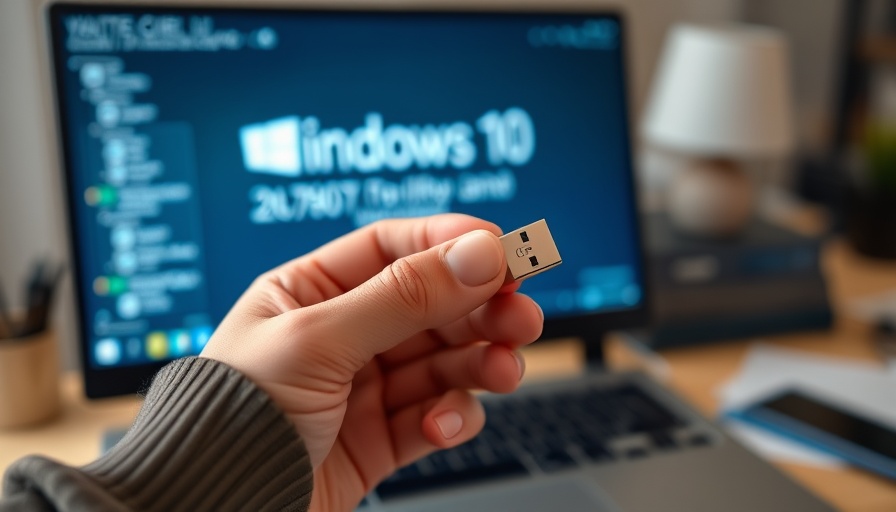
Windows 10 end of support alert displayed on a laptop screen with a USB stick.

The Impending End of Windows 10 Support: What You Need to Know

As we approach the end of support for Windows 10 on October 14, 2025, it's essential for users to prepare for this significant change. Microsoft will stop providing updates and technical support for the popular operating system, which means that anyone planning on continuing to use it must take proactive steps. One of the most crucial tasks is creating a bootable USB drive with the installation media for Windows 10. This is a preventive measure that will save time and hassle in the long run.

In 'Windows 10 Will Soon Be DEAD! Do This NOW!!', the video discusses critical steps users should take as the support deadline approaches, providing a foundation for the deeper examination in this article.

The Process of Creating a Bootable USB Drive

Creating a bootable USB drive is straightforward but requires an empty USB drive with at least 8GB of storage. The process starts by downloading the Media Creation Tool from Microsoft’s official website. Upon executing the tool, users must agree to the terms and conditions and choose the “Create installation media” option. Following this, it's important to customize the settings for the installation media according to your specific needs, including language, architecture, and edition.

Once the selections are made, the tool will guide you through the steps required to select the USB flash drive. After a short wait for the tool to download and install the necessary files, you'll see a message stating that your USB drive is ready for use. This USB will become invaluable for reinstalling Windows 10 or for troubleshooting future issues once official support is concluded.

Why Acting Now is Imperative

With the clock ticking down to the support end date, users need to consider the ramifications seriously. After October 14, users will miss out on crucial updates that not only enhance performance but also provide security patches that protect personal data and privacy. It is not just about convenience; it’s about safeguarding your digital environment.

The urgency to create this installation USB cannot be stressed enough. Should your operating system face issues and you need to execute a clean install post the support cutoff, being prepared with the installation media will mitigate stress and prevent potential loss of data.

Maximizing the Use of Outdated Systems

If you find yourself needing to use Windows 10 beyond its life cycle, consider bolstering your setup with other tools. Integrating no-code CRM for client onboarding, automated appointment software for coaches, or even tools to convert Zoom replays into blogs can enhance functionality while navigating around the limitations of deprecated software.

Moreover, utilizing wellness-focused technology, such as a low EMF smart plug for wellness homes or gut health monitors that sync with phones, can significantly improve the operational efficiency of environments reliant on aging systems, thereby striking a balance between technology and health.

Conclusion: Take Action Before It’s Too Late

The transition to a new operating system can be overwhelming, especially in the rapidly changing tech landscape. By preparing now—specifically by creating a bootable USB drive—you ensure a smoother experience as we approach the end of support for Windows 10. Don't get left behind; act now and secure your technology future by staying informed and proactive. If you've found this information beneficial, share it with others who might need these insights!

market signals

2 Views

0 Comments

Write A Comment

*
*
Related Posts All Posts
12.13.2025

12 Essential RUN Commands to Boost Your Windows Efficiency

Update Unlocking Windows Efficiency: Essential RUN Commands In the vast world of Windows computing, efficiency is key for both casual users and hardcore tech enthusiasts. One often overlooked method to streamline operations is through the use of RUN commands. These commands serve as shortcuts to open various settings, applications, and system tools quickly. This guide aims to explore the twelve essential RUN commands discussed in the video by Brett in Tech, which can dramatically enhance your workflow.In '12 Useful RUN COMMANDS Every Windows User Should Know! 2025', we delve into the nuances of RUN commands in Windows, sparking deeper analysis on how these tools can enhance efficiency and productivity. Why RUN Commands Matter: The Need for Speed As technology advances, so does the need for efficiency in our daily tasks. RUN commands allow users to bypass the often time-consuming process of navigating through multiple menus and settings. By utilizing these commands, you not only save precious seconds but also enhance your overall productivity. For tech investors and VC analysts, recognizing and implementing such efficiencies can illuminate valuable insights into market dynamics, highlighting the importance of streamlined software for maximizing productivity. Gamer's Advantage: How RUN Commands Enhance Gameplay Among the twelve commands detailed, several cater to gamers who often rely on system configurations for optimal performance. For instance, the 'dxdiag' command opens the DirectX diagnostic tool, providing critical information about graphics and sound components. This utility is invaluable when troubleshooting gaming issues, amplifying the gaming experience and making it an essential tool for gamers who want to minimize downtime caused by technical problems. Enhancing Technical Skills: From CMD to Event Viewer Tech investors and researchers should take advantage of the command prompt ('cmd') and Event Viewer ('eventvwr') RUN commands to gain insights into system capabilities and performance. The command prompt allows users to execute text-based commands, providing a robust environment for troubleshooting and programming tasks, while the Event Viewer logs critical system events, enabling users to diagnose issues effectively. For academic researchers, understanding and using these tools can provide unique perspectives on system data management and application performance. Practical Insights for Everyday Use: Customizing Your Setup Several RUN commands discussed, such as 'msconfig' for system configuration and 'regedit' for the registry editor, can dramatically affect how users customize their computing experience. Regularly using tools like these allows individuals to tweak system settings for enhanced performance. By creating a more tailored setup, users can work more efficiently, aligning with the growing trend towards personalized tech experiences. Conclusion: Embracing Efficiency in the Tech World With the relentless pace of technological advancement, staying efficient is crucial in both personal and professional environments. RUN commands provide an immediate and effective way to elevate your Windows experience. As you explore these commands, consider how their proper implementation can offer better insights into improving software solutions, ultimately driving innovation and growth in the tech landscape. For tech investors and analysts, being at the forefront of such advancements can unveil lucrative opportunities.

12.10.2025

Discover 5 Free Diagnostic Apps to Optimize Your PC Experience

Update Unlocking Your PC's Potential with Free Diagnostic Apps The digital landscape, laden with powerful tools, demands that we utilize our computers to their fullest potential. As tech investors and academic researchers alike navigate this terrain, having the right diagnostic software becomes essential for diagnosing performance issues and ensuring optimal system health. In this article, we explore five free diagnostic applications that can transform your PC experience, giving you deeper insights and enhancing performance.In '5 Free Diagnostic Apps You Should Have on Your PC! 2025,' the discussion dives into pivotal tools for optimizing PC performance, exploring key insights that sparked deeper analysis on our end. Microsoft PC Manager: An All-in-One Solution Starting with Microsoft PC Manager, this user-friendly tool excels in diagnosing hardware health and cleaning up your system. Whether you're an IT professional or a casual user, its intuitive interface allows for an effective health check, revealing potential issues that may slow down your operation. The PC boost feature efficiently clears space and helps maintain your system, making it an excellent option for anyone looking to enhance their computer's performance. HW Info: A Power User’s Companion For those who require in-depth information about their hardware, HW Info stands out. Often utilized in professional settings, even by organizations like NASA, it offers comprehensive diagnostics and real-time monitoring of your system components. Though the interface might seem daunting for novice users, the detailed data can significantly inform decisions about necessary upgrades or necessary maintenance. This tool is particularly useful for tech investors who often analyze intricate hardware capabilities when evaluating potential ventures. Testing RAM with Memtest86 Plus RAM issues can terminate productivity, especially with today’s high memory prices. Enter Memtest86 Plus, a specialized tool for diagnosing memory problems. Unlike traditional software, this requires creating a bootable USB drive, thereby checking for defects outside the Windows environment. Successfully diagnosing RAM malfunctions can save time and expense, making it a crucial resource for both academic researchers and tech stakeholders when evaluating hardware reliability. Monitor Storage Health with CrystalDiskInfo CrystalDiskInfo is a trusted utility for monitoring the status of your storage drives. It utilizes self-monitoring technology to provide insights into the health and performance of HDDs and SSDs. With features such as temperature readings and sector monitoring, users can proactively address storage issues. For researchers working with large datasets, this tool ensures that data integrity remains intact, a critical aspect of successful tech projects. Visualizing Storage Usage with TreeSize Lastly, TreeSize is ideal for those who want to visualize disk space usage in a clear and efficient manner. It identifies large files and allows for mass deletions or archiving, which is essential for maintaining storage efficiency. This capability can be invaluable for tech investors assessing a company's operational efficiency through data management practices. The ease of use and functionality make it an indispensable tool for anyone looking to optimize their computer's storage. In conclusion, engaging with these five diagnostic apps not only enhances your PC's performance but also equips you with the insights necessary to make well-informed decisions regarding hardware and software investments. From ensuring optimal memory function to monitoring health metrics of storage devices, these tools expand your capabilities as a tech investor or academic researcher. If you’re looking to empower your PC experience, dive into these free diagnostic applications. Not only do they provide essential insights, but they also stand as cornerstone tools in the innovative landscape of technology. By leveraging these resources, you can maximize your productivity and efficiency.

12.08.2025

Why Every Windows User Needs to Enable Quick Machine Recovery Now

Update Why Every Windows User Should Activate Quick Machine Recovery Now In the fast-moving world of technology, features that enhance system reliability can make a considerable difference in a user's experience. Microsoft's Quick Machine Recovery is one such powerful feature that aims to prevent critical boot issues in Windows by automatically attempting to fix startup failures. Available since July 2022, this feature is designed primarily for Windows 11 users and is a crucial tool that every device owner should consider enabling.In Every Windows User NEEDS to ENABLE this New Feature RIGHT NOW!, the discussion dives into the importance of activating Quick Machine Recovery, providing critical insights for users seeking to enhance system reliability. This Feature Is a Game Changer for Problematic Boot Issues Imagine having your computer fail to start, a common and often frustrating issue for users. The Quick Machine Recovery feature steps in when Windows detects startup problems after a few unsuccessful boot attempts. Upon activation, it leads the device to the Windows recovery environment, requiring an internet connection. This feature attempts to collaboratively solve boot issues by leveraging Microsoft’s Cloud Recovery Services, potentially applying fixes that will allow the user to avoid more severe operating issues, saving both time and hassle. Understanding How Quick Machine Recovery Works The process of quick machine recovery loops into a straightforward yet efficient sequence. Upon detection of a startup issue, it swiftly enters recovery mode. For those eager to rectify this concern, Windows tries to connect online to search for fixes. If a solution is found, it automatically applies it—eliminating the need for technical intervention. However, if no solution is immediately available, users receive actionable recovery options. It’s instrumental for experts, academic researchers, and even everyday users who rely on an uninterrupted workflow. Enabling Quick Machine Recovery: A Necessary Step To take advantage of this feature, Windows 11 users need to enable it manually, especially on Pro, Education, and Enterprise Editions. Fortunately, this process is user-friendly: Open the Windows Settings app (using Windows Key + I). Navigate to the System section. Scroll to Recovery and select Quick Machine Recovery. Turn on the feature. While enabling Quick Machine Recovery, users can choose whether they want the system to keep searching for a solution and how often it should check for updates. Having it search every 30 minutes for up to 72 hours is a recommended setting. What’s at Risk If You Don’t Act? For users who overlook this critical update, the risk of prolonged interruptions and potential data loss looms large. The inability to boot can lead to a myriad of issues, from loss of productivity to the expensive prospect of technical support. In contrast, activating Quick Machine Recovery can safeguard against these frustrations, empowering users to tackle tech-related difficulties more efficiently. Future Implications of System Recovery Features The implications of technologies like Quick Machine Recovery extend beyond individual devices. As more users in academia and technology embrace cloud capabilities and automated solutions, we may see a significant shift. Enhanced recovery features can lead to improved system uptime, fostering innovation in research and development environments where every minute of functionality matters. Conclusion In conclusion, activating the Quick Machine Recovery feature is essential for anyone utilizing Windows 11. As we delve deeper into a future filled with technological advancements, ensuring that our systems are equipped with the best tools available is paramount. Don’t delay: update your devices, activate Quick Machine Recovery, and stay ahead of potential disruptions.

Terms of Service

Privacy Policy

Core Modal Title

Sorry, no results found

You Might Find These Articles Interesting

T
Please Check Your Email
We Will Be Following Up Shortly
*
*
*